
GPT Image 2.5
GPT Image 2.5 — Online AI Image Generator
Create from text or edit reference photos with GPT Image 2.5 — five quality tiers up to 4K, inline preview, and one-click download.
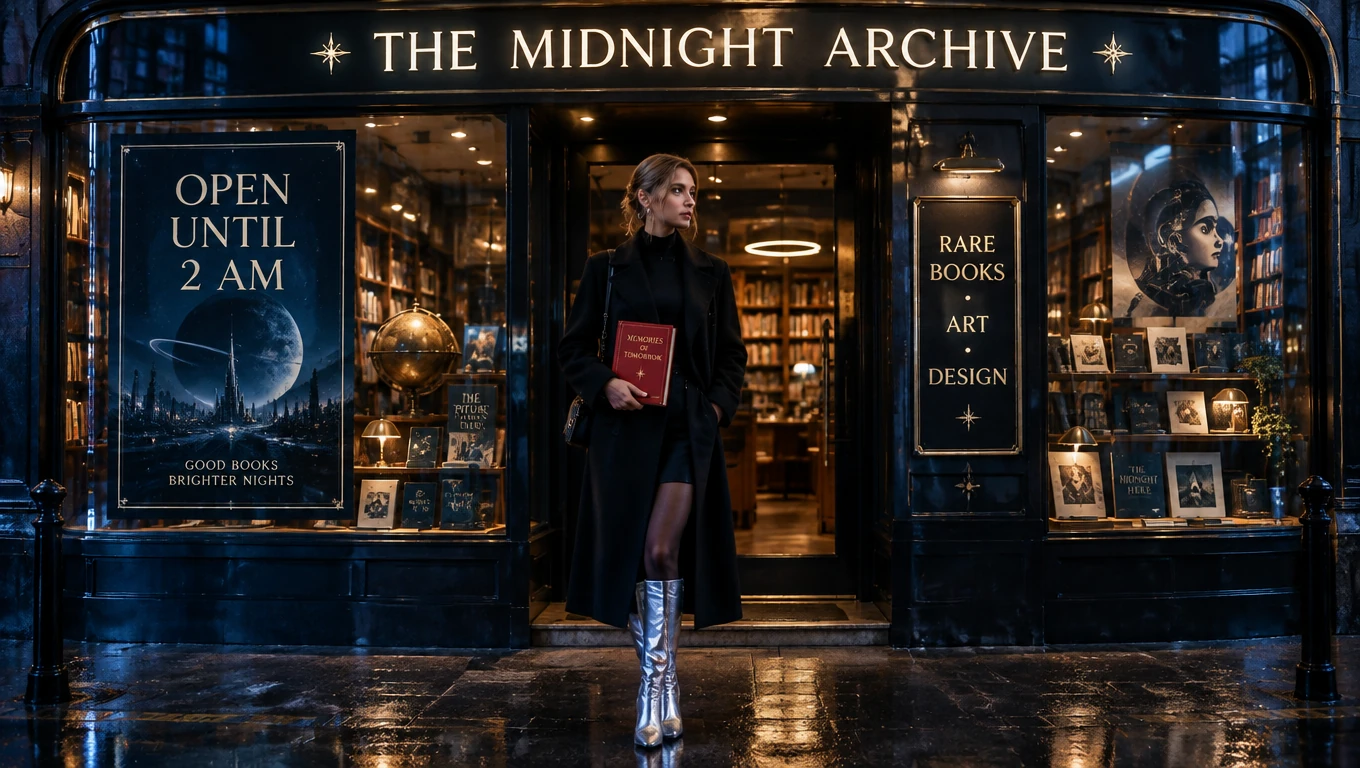
GPT Image 2.5 — Create & Edit Images Free Online
Use GPT Image 2.5 to generate new visuals from a text prompt, or upload reference photos and describe the edits you want.
Switch between the Flare and Sunburst variants, push quality up to 4K, and download the result — all in one workspace on Lucer.
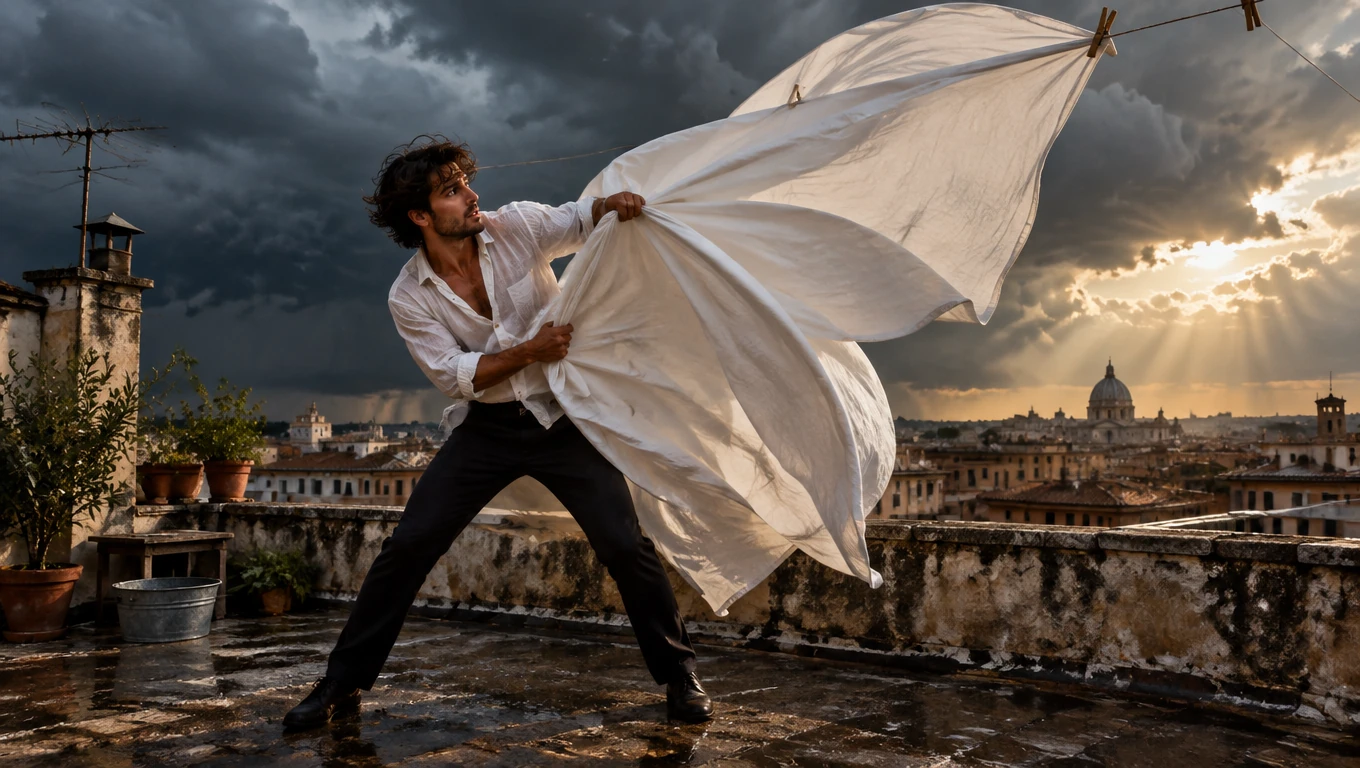
What Is GPT Image 2.5?
GPT Image 2.5 is OpenAI's latest image model, and it handles two core jobs: Text to Image when you want a brand-new scene from a prompt alone, and Image to Image when you need to transform existing photos with natural-language instructions. It adds two higher quality tiers, ten more aspect ratios, and a choice between two variants — all at a lower cost per image than GPT Image 2.
Flare and Sunburst Variants
Flare returns results faster, which suits drafts and quick iteration. Sunburst spends longer on fine detail. Both cost the same credits, so you can switch freely as your brief changes.
Five Quality Tiers Up to 4K
Beyond low, medium, and high, GPT Image 2.5 adds xhigh and max for work that needs maximum fidelity. Pair any tier with 1K, 2K, or 4K output.
Fifteen Aspect Ratios
From square and portrait through to 21:9 cinematic and 3:1 banner crops, pick the shape your channel needs instead of cropping afterwards.
Cheaper Than GPT Image 2
The same medium and high tiers cost noticeably fewer credits than they did on GPT Image 2, so you can iterate more for the same balance.
Why Use GPT Image 2.5 on Lucer
A focused GPT Image 2.5 flow — pick a variant and mode, prompt, generate, download — so you spend time on creative direction instead of juggling tools.
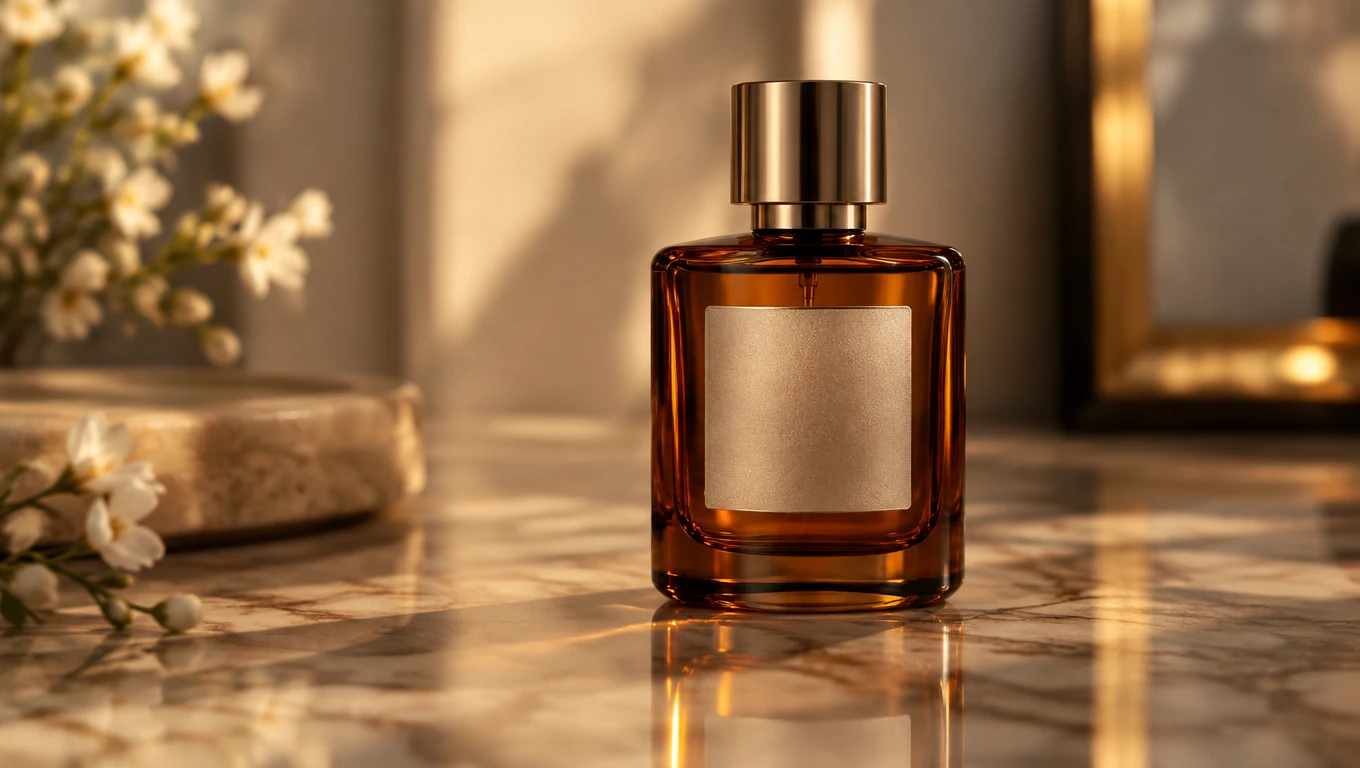
How to Use GPT Image 2.5
Three steps to GPT Image 2.5 results:
Pick Your Mode and Variant
Choose Text to Image for prompt-only generation, or Image to Image and upload up to five reference photos. Then pick Flare for speed or Sunburst for detail.
Write Your Prompt and Set Output
Describe what to create or change, then choose an aspect ratio, quality tier, resolution, and file format. The credit cost updates as you go.
Generate and Download
Click Generate, wait for GPT Image 2.5 to finish, review the preview, and download your image when it matches your goal.
GPT Image 2.5 Features
Everything in this workspace is tuned for GPT Image 2.5 text-to-image and image-to-image.
Prompt-Only Generation
GPT Image 2.5 Text to Image creates new visuals from natural-language prompts — no reference upload needed.
Reference-Based Edits
GPT Image 2.5 Image to Image transforms uploaded photos through plain-language instructions instead of manual masking.
Variant Switching
Move between Flare and Sunburst at any time to trade speed against fine detail, at no difference in credit cost.
Five Quality Tiers
Low, medium, high, xhigh, and max — combine any of them with 1K, 2K, or 4K output resolution.
Predictable Credit Cost
See the credits a run will cost before you confirm it, and get an automatic refund if generation fails.
Inline Preview
GPT Image 2.5 results appear in the workspace panel so you can iterate without leaving the page.
FAQ: GPT Image 2.5
More questions about GPT Image 2.5? Reach out via the contact options in the footer.
Try GPT Image 2.5 Now
Jump to the generator above, pick a variant, write a prompt, and create with GPT Image 2.5 — or open Pricing for credits.